Documentation
Everything you need to get started with AuraFx. Follow this guide to set up the plugin and start transforming your images.
Bring Your Own Key (BYOK)
AuraFx uses a BYOK model for the Gemini API. This means you use your own Google AI API key, giving you:
- Full privacy - your images never pass through our servers
- No usage limits from us - only Google's generous free tier
- Complete control over your API usage and billing
1Getting Started
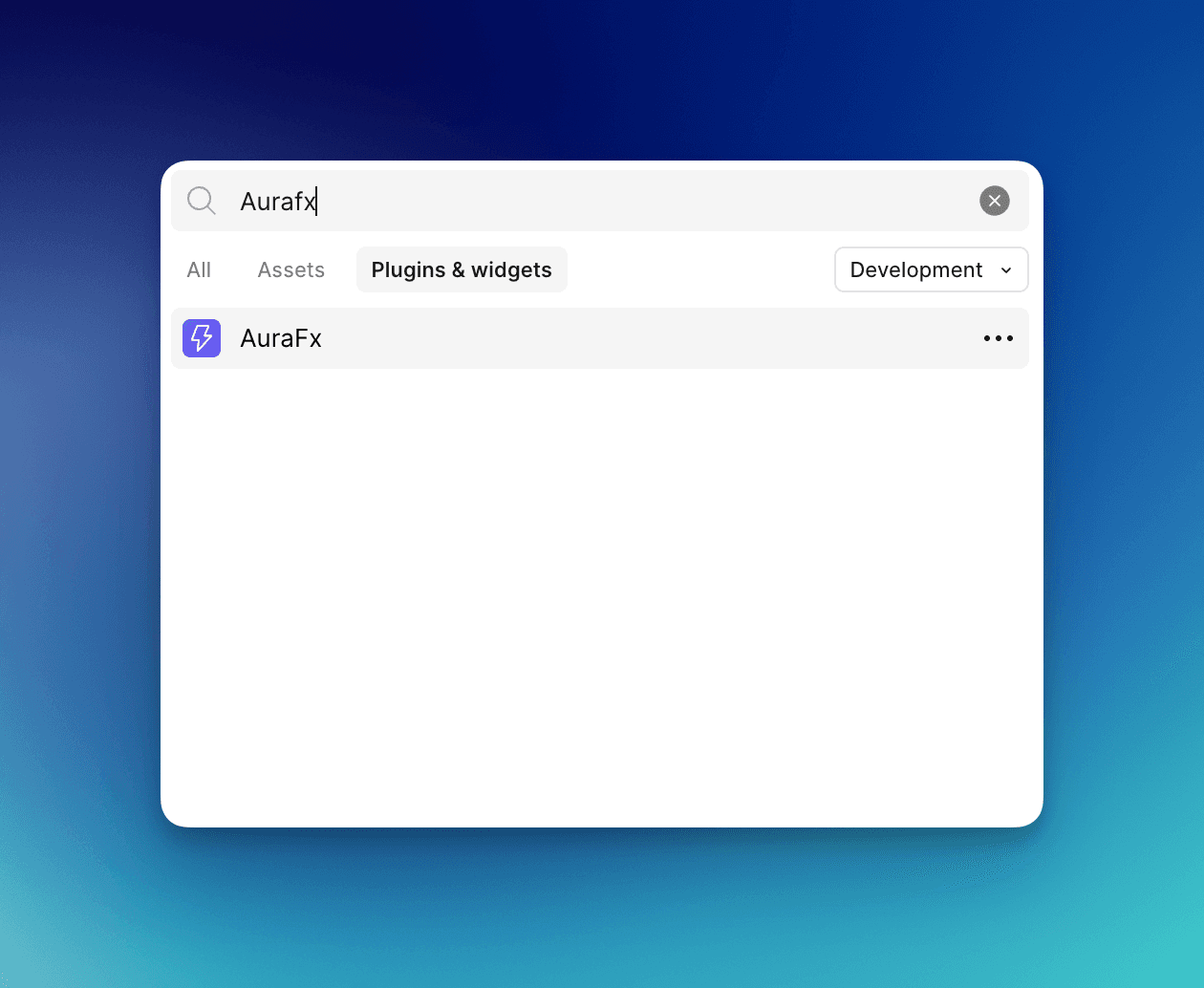
Step 1: Install AuraFx from Figma
Open Figma, go to Plugins → Search for 'AuraFx' → Click Install. The plugin will be added to your workspace.
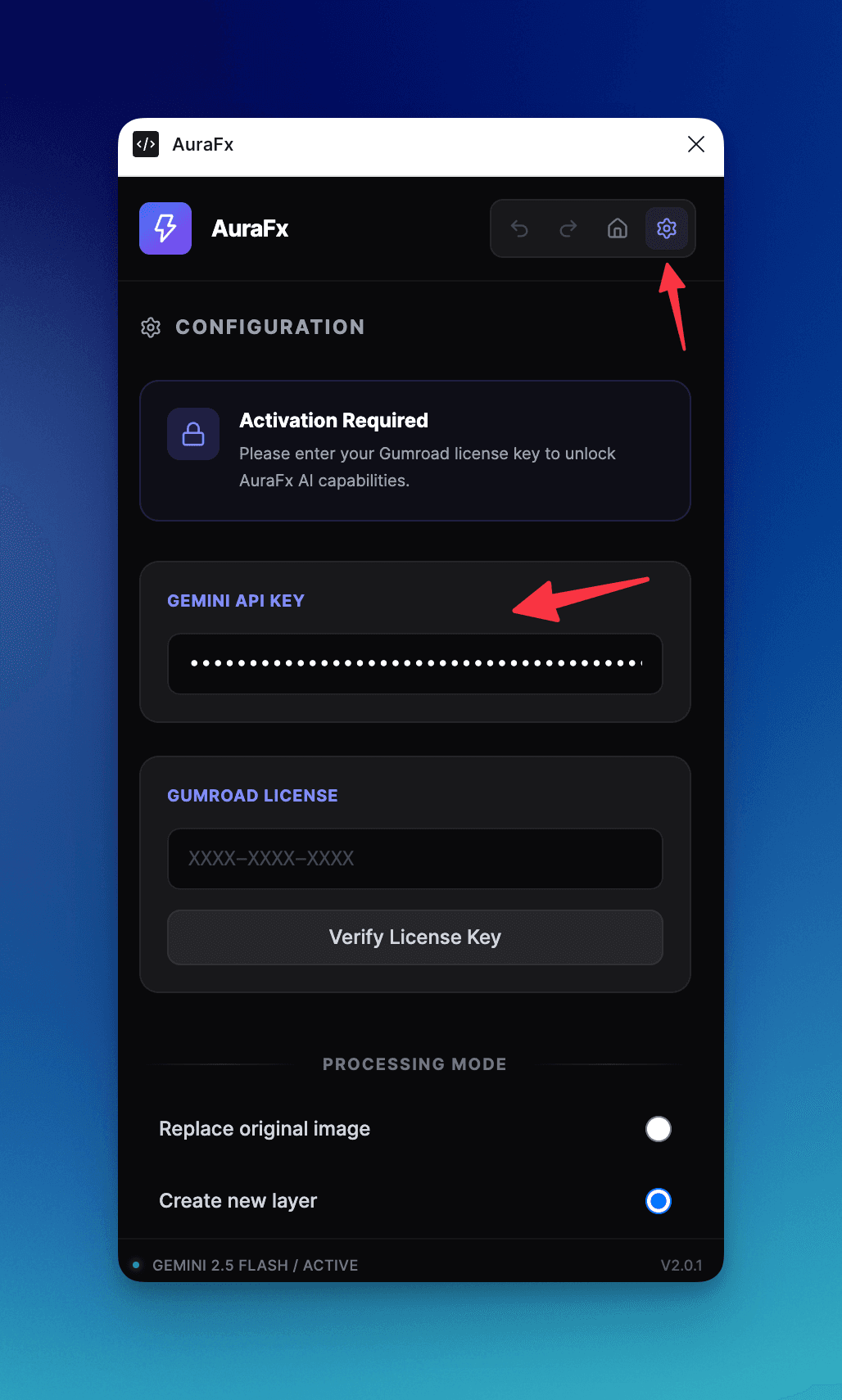
Step 2: Get Your Gemini API Key (BYOK)
AuraFx uses a Bring Your Own Key (BYOK) model. Visit Google AI Studio to generate your free Gemini API key. This ensures your usage is private and you have full control.
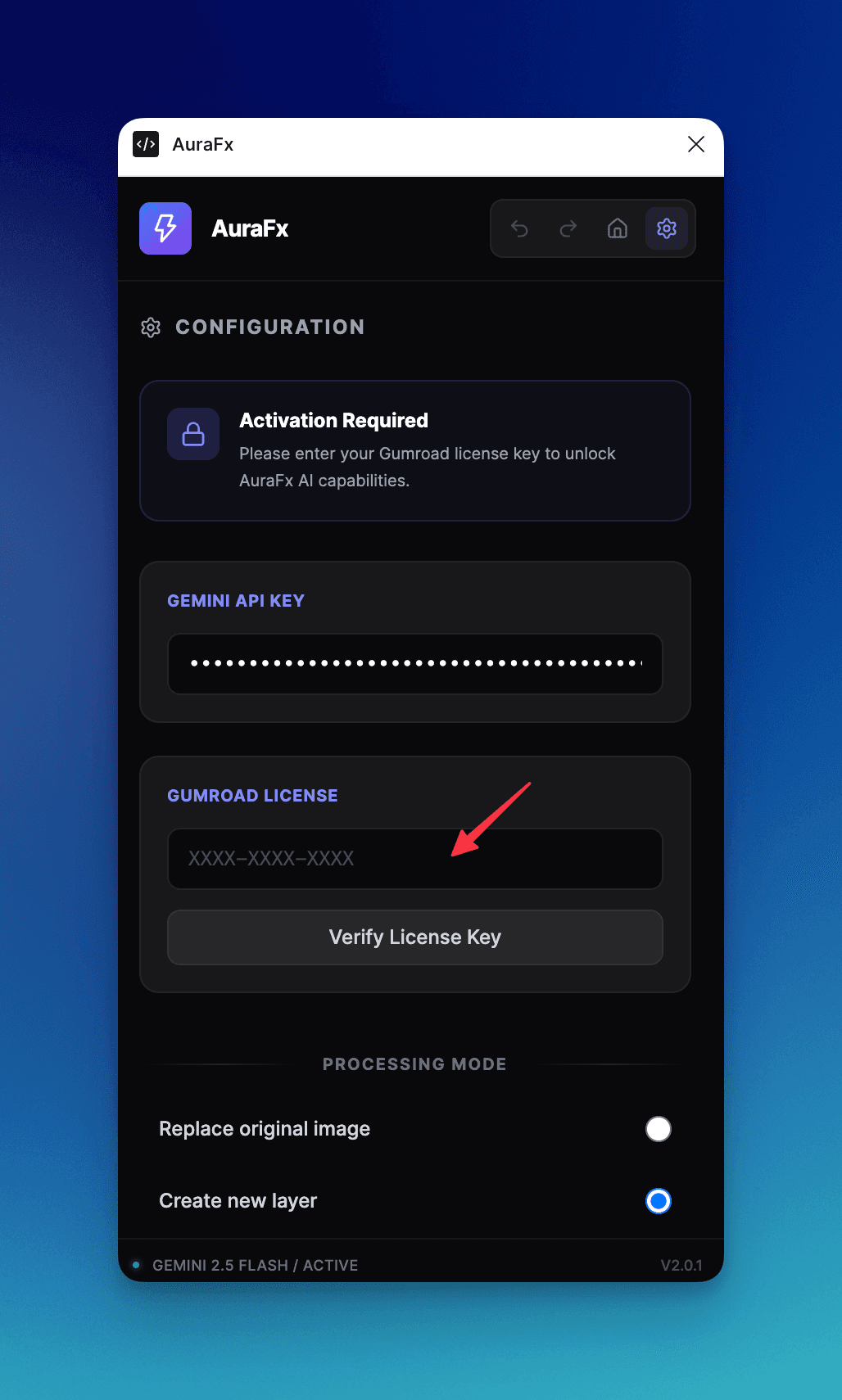
Step 3: Enter Your License Key
After purchasing AuraFx, you'll receive a license key via email. Enter it in the Settings panel to activate all features.
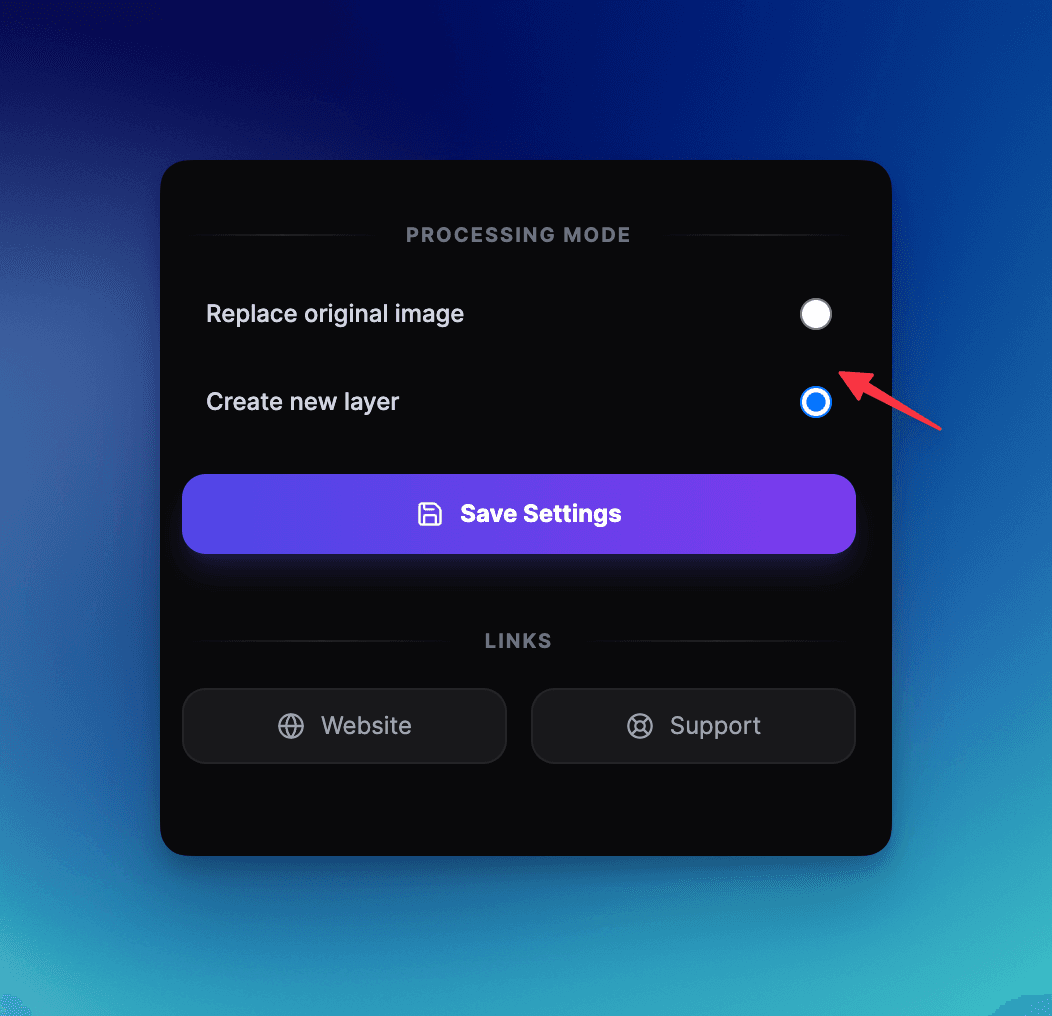
Step 4: Configure Settings
Choose your preferred processing mode: 'Replace original' to update the image in place, or 'Create new layer' to preserve the original.
Step 5: Select an Image
Click on any image in your Figma canvas. AuraFx will automatically detect the selection and enable the action buttons.
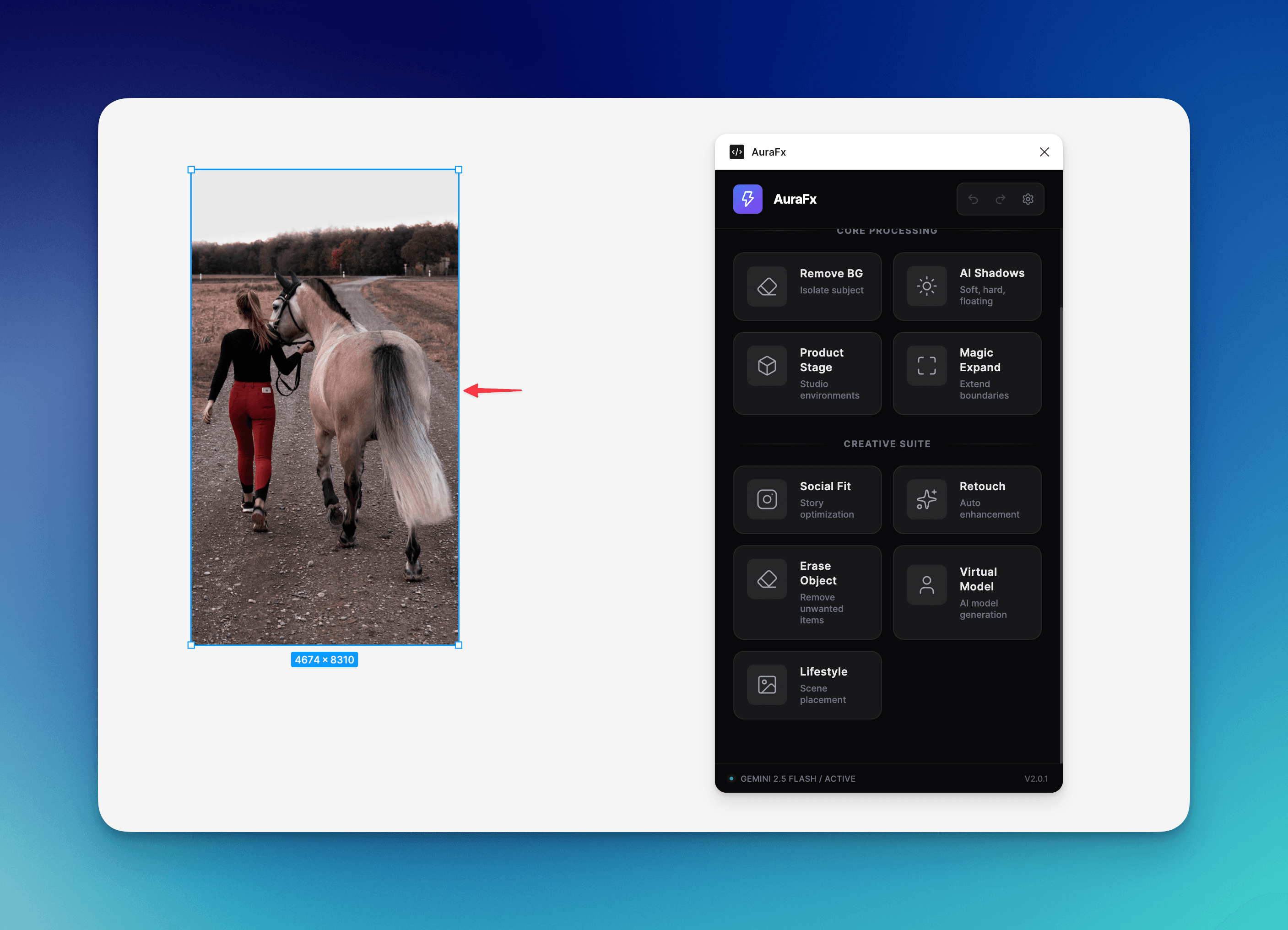
Step 6: Apply AI Effects
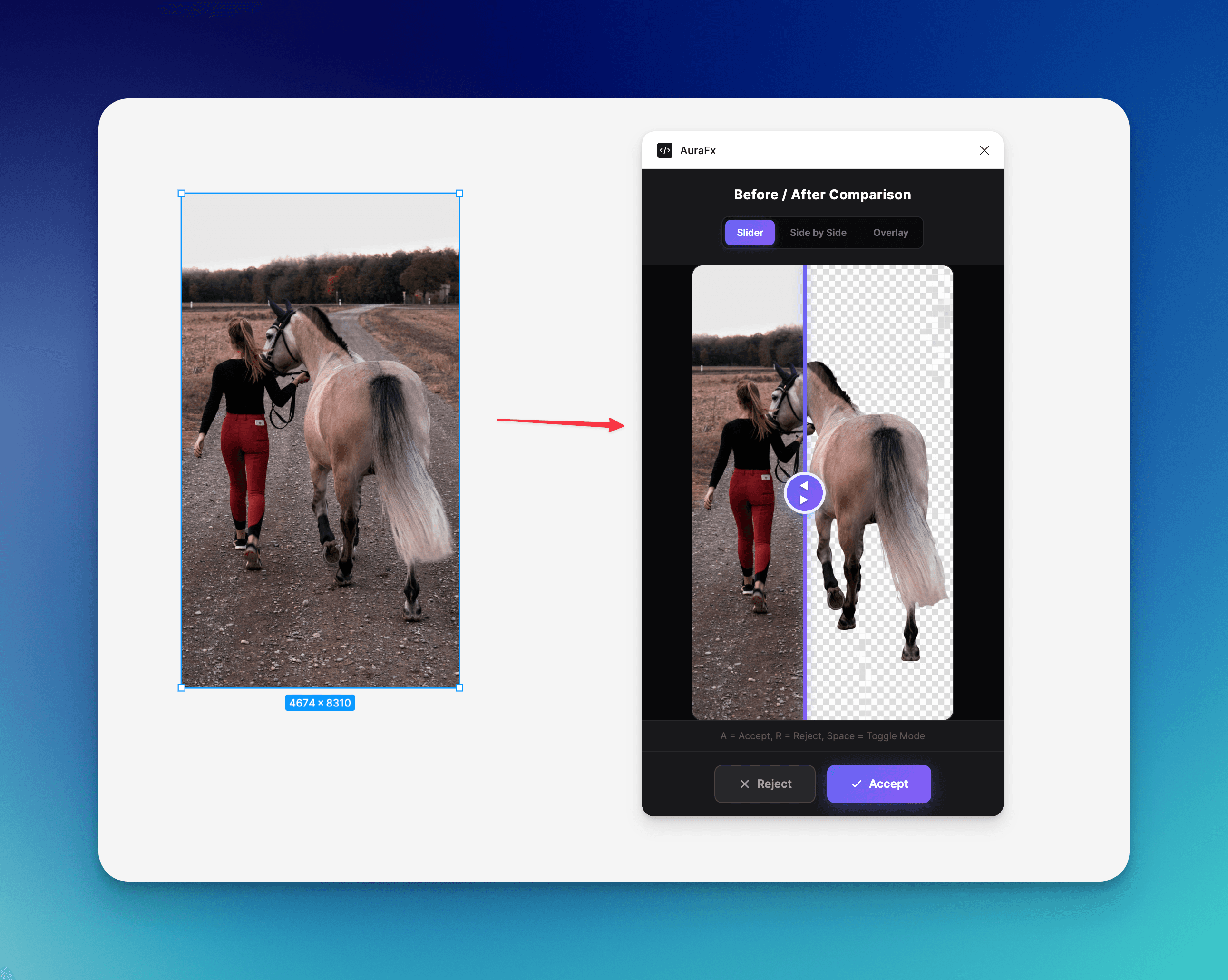
Choose from presets like Remove Background, Add Shadows, Expand Canvas, or use Custom prompts for unique effects.
2Feature Reference
Remove Background
Instantly isolate subjects from any background with pixel-perfect precision.
AI Shadows
Generate realistic shadows: Soft (natural), Floating (elevated), or Hard (dramatic).
Product Staging
Place products in AI-generated studio environments with proper lighting.
AI Expand
Extend images beyond their borders for different aspect ratios.
Object Removal
Remove unwanted objects by describing what to erase.
Batch Processing
Process up to 50 images at once with the same effect.
Action Chaining
Queue multiple effects to run sequentially.
3Troubleshooting
API Key Not Working
Make sure you've enabled the Gemini API in your Google Cloud Console and that your key has the correct permissions.
License Validation Failed
Check that you've entered your license key correctly. If issues persist, contact support at abdelhak.akermi@gmail.com
Image Not Processing
Ensure you have an image selected in Figma (not a frame or group). The plugin requires a direct image selection.
Need more help?
Contact Support